The short answer
The order matters more than the tools.
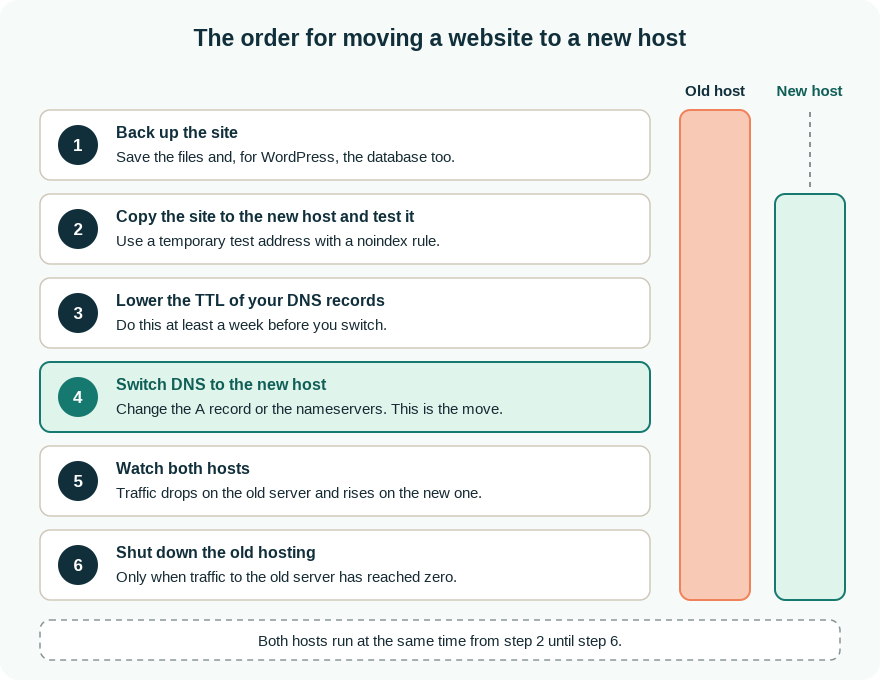
Google’s guide to changing hosts uses one simple order: prepare the new hosting, switch DNS, watch the traffic, then shut down the old hosting. The website keeps the same domain and the same URLs. Only the server behind them changes.
- 01
Back up the site. Save all files and, for a site like WordPress, the database.
- 02
Copy the site to the new host. Upload the files and import the database there.
- 03
Test the copy. Check pages, images, forms and downloads before anyone else sees it.
- 04
Lower the TTL. Do this at least a week before the switch, so DNS changes reach people faster.
- 05
Switch DNS. Point the domain at the new host. This is the actual move.
- 06
Watch both hosts. Traffic should drop on the old server and rise on the new one.
- 07
Cancel the old plan last. Shut it down only when no one uses it anymore.
You can lower the TTL while you are still testing. The old site stays online the whole time. The goal is that visitors always reach a working site while you move, on the old server or the new one.
Make a list
Before you start: what you are moving.
A website is often more than one thing. Make a short list before you touch anything. These are the usual parts:
- Site files: Pages, images, themes, plugins and other code. A plain HTML site is mostly files.
- Database: A content management system (CMS) such as WordPress keeps posts, pages, comments and settings in a database. A database is a separate store of data, not a folder of files.
- Email: If you have addresses like you@example.com, find out which company runs the mailboxes. It may be your old host or a separate email provider.
- DNS: The Domain Name System turns your domain name into a server address. Find out where your DNS records are managed: at the registrar, the old host or another service.
- SSL certificate: The file that lets your site open over HTTPS without a certificate warning. The new server needs its own valid certificate for your domain.
The domain name itself is a separate service. It stays with your registrar, the company where you registered it. ICANN, the body that accredits registrars, notes that you may be able to change web hosts instead of registrars. That way you skip the transfer between registrars, and its lock, completely. Our guide on domain vs hosting explains how the two connect.
Have you not picked the new host yet? Read about the types of web hosting first, so the new plan fits what your site needs.
Steps 1 and 2
Back up and copy the site to the new host.
Start with a backup. The WordPress guide says to back up your WordPress directory, images, plugins and other files, plus the database, before you move to a new server.
Files and database are two parts. Downloading the files does not save the database, because the database lives outside the WordPress folder. You export it as a separate file, often ending in .sql. Many control panels let you do this with a tool called phpMyAdmin. WordPress suggests backing up the database first, then the files, so both form one set.
Store the backup off the old server, for example on your own computer. WordPress advises keeping several backups in different places, in case one fails.
Copy the site
Google puts it plainly: what a copy of your website means depends on your platform. It can be plain HTML files you upload again, or a database export you import at the new host.
For WordPress, when the domain and URLs stay the same:
- Copy the files and the database to the new server. You do not need to reinstall WordPress.
- If the database name or database user is different on the new host, edit wp-config.php so it has the right values.
- When you import the database at a new host, you may need to create the database user and password again. Keep wp-config.php in line with them.
Changing the domain name or the URLs at the same time is a bigger job. Old addresses stay inside the database, and a careless search-and-replace can break settings. This guide covers the simpler move: same domain, same URLs, new host.
Step 3
Test the new copy before anyone sees it.
Your domain still points to the old server at this stage. So you test the new copy in another way. Google suggests a test environment, perhaps limited to your own IP address, or a temporary hostname such as beta.example.com.
Open the new copy in a browser and check:
- Every important page.
- Images.
- Forms, such as a contact form.
- Downloads, such as PDF files.
A temporary hostname is public, so search engines could find it. Google advises adding a noindex rule to the HTML or the HTTP headers of those test pages. Noindex tells search engines not to show a page in their results.
Testing a WordPress copy
WordPress stores its own address in the database. The WordPress guide says that to test before you switch, you must temporarily change the siteurl and home settings in the wp_options table, for example with phpMyAdmin. Set them back to your real domain before the copy goes live.
Keep your Search Console verification
Search Console is Google’s tool for site owners. If you proved you own the site with an HTML file, copy that file to the new site too. If you used a meta tag or Google Analytics in your templates, make sure the new copy still has it.
A week ahead
Lower your DNS TTL a week ahead.
Every DNS record has a TTL, short for time to live. It sets how long a DNS cache server may keep using its saved copy of a record. After that, it asks the authoritative DNS server, the one that holds your records, for a fresh copy.
That matters on moving day. When you change a record, caches that still hold the old copy keep sending people to the old server until their copy runs out. A long TTL means a long wait.
Google’s advice: lower the TTL to a conservative low value, for example a few hours, at least a week before the move. Then DNS caches refresh faster when you make the real change. You change the TTL in the same place as your DNS records.
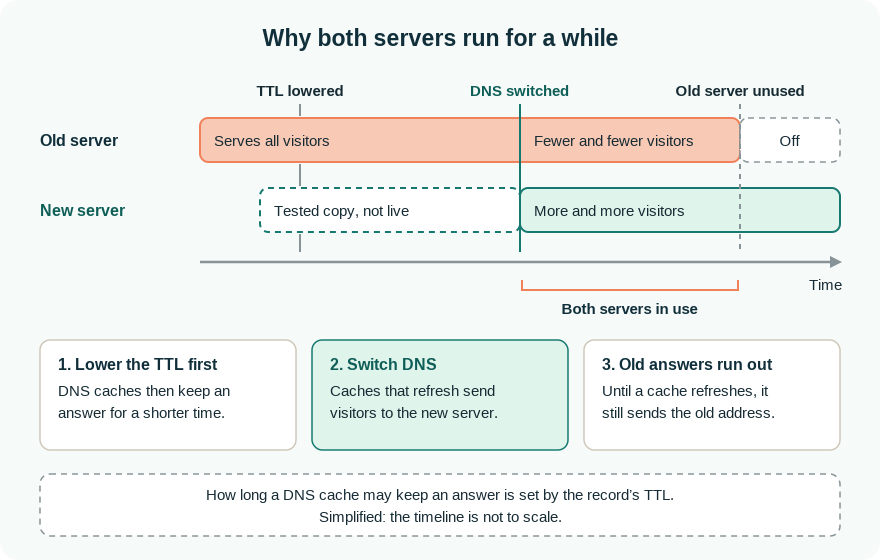
This overlap is the reason you keep the old plan. During that time, some visitors still reach the old server. If it is already gone, those visitors may not reach your site at all.
Learn why old answers linger in our DNS propagation guide.
The switch
Switch DNS: change the A record or the nameservers.
Google calls this step the actual site move. You update DNS so your domain points to the new host. ICANN describes two ways to do it: change the hosting IP address for your domain, or update your domain’s nameservers.
- A record: the DNS record that holds the IP address of your server. An IP address is the number computers use to find each other, such as 192.0.2.10.
- Nameserver: the DNS server that holds all the records for your domain. The NS record says which nameservers your domain uses.
- MX record: sends email for your domain to a mail server.
- TXT record: stores text notes in DNS. These are often used for email security.
| Question | Change the A record | Change the nameservers |
|---|---|---|
| What you change | One record: the A record now holds the new host’s IP address | The NS records: your domain uses the new host’s nameservers |
| Where DNS is managed | Stays where it is now | Moves to the new nameservers |
| Email (MX) and TXT records | Not touched, but check which mail server name your MX record points to | Must be added again in the new DNS zone |
| Main risk | Forgetting another record that points to the old server, such as the AAAA record | Forgetting a record, so email or other services stop |
Why the nameserver route is easy to get wrong
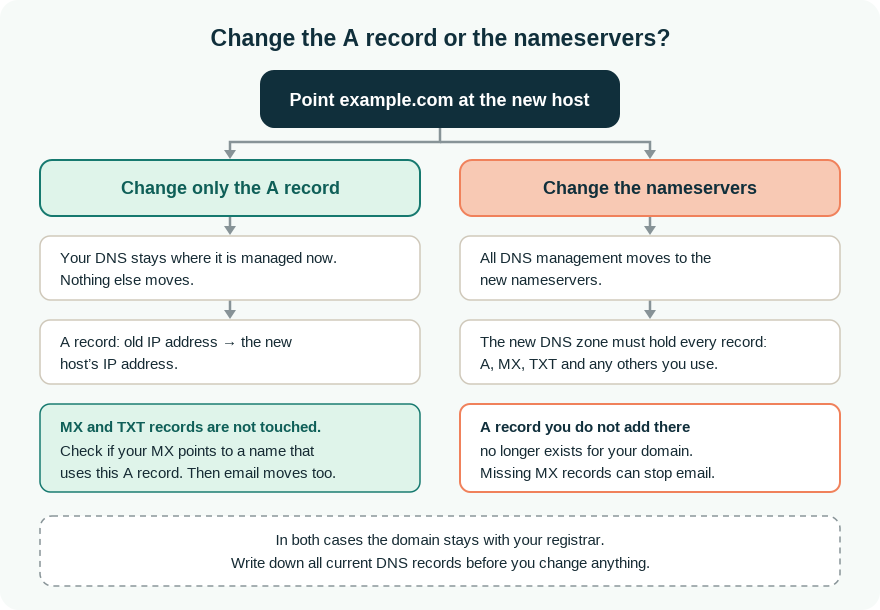
DNS records live on the authoritative nameservers for your domain. When you switch to the new host’s nameservers, those servers answer for your whole domain. They only know the records that exist in the new DNS zone, the list of records for your domain. A record you do not add there, such as an MX or TXT record, is simply missing from then on.
Do not assume the new zone already holds your records. Compare it with the list you wrote down, record by record, before you switch.
Changing only the A record is the smaller change. Your DNS stays where it is, so your MX and TXT records stay as they are. An MX record points to a mail server name, and that name needs its own A or AAAA record. If your MX points to a name that uses the A or AAAA record you change, your email goes to the new address too. Also check whether you have an AAAA record (for an IPv6 address) or a www record that points to the old server. Ask the new host which values to use.
Keep your email working.
When someone emails you, their mail server looks up the MX records for your domain. Those records say where to deliver the message. So where email goes is set in DNS, not by where your website runs.
Before the switch, write down your current MX and TXT records. Then pick your case:
- 01
Email runs at a separate provider. If you change only the A record, leave the MX records alone, but check that they do not point to a name that uses the A record you change. If you switch nameservers, add the same MX and TXT records in the new DNS zone first.
- 02
Email is part of the old hosting plan. The mailboxes live on the old host. Ask the old host whether cancelling the hosting plan also ends your mailboxes. Set up a new home for your email before you cancel: at the new host or at an email provider.
- 03
You move email to a new provider. That provider tells you which MX records to use. Google Workspace, as one example, gives its own MX value. It warns that email might not work correctly if old or wrong MX records stay.
MX records decide where new email is delivered. They do not copy messages you already have. Ask your old and new provider how to keep or move your existing messages, and do that before you cancel the old plan.
Security
HTTPS on the new host.
Your site needs an SSL certificate on the new server, so it loads over HTTPS. A certificate authority such as Let’s Encrypt first checks that you control the domain. It does that with a challenge.
- HTTP-01: a file is placed on the web server at your domain. HTTP-01 works when Let’s Encrypt can fetch that file through your domain name. It follows redirects to get there.
- DNS-01: you prove control by adding a TXT record in your DNS. It even works for a server that is not reachable from the public internet. It is harder to set up, and Let’s Encrypt says it only makes sense if your DNS provider has an API for automatic updates.
So with HTTP-01, some hosts can only get the certificate for the new server after the DNS switch. Ask the new host whether it issues the certificate before or during the switch. Right after the switch, check that your site opens over HTTPS without a certificate warning.
To keep that certificate valid after the move, see how SSL certificate renewal works.
The last steps
After the switch: watch, then cancel.
Right before the switch, remove any blocks you added for testing. Some people use robots.txt to block all crawlers, or noindex rules, while they build the copy. Google says to remove those when you start the move.
Then keep an eye on three things:
- Server logs on both hosts. Traffic should drop on the old server and rise on the new one.
- Public DNS checking tools. Check that DNS servers in different places return your new settings.
- Search Console. Watch the index coverage reports to see how Google crawls the site.
Google notes that a short drop in Googlebot’s crawl rate right after the move is normal. The rate then climbs again over the next few days, as long as the new server has no serious problems or slowdowns.
On WordPress with permalinks or other rewrites, the WordPress guide says to set the permalinks up again when the site goes live. Check a few inner pages, not just the home page.
When to cancel the old plan
Check the server logs on the old host. Google’s rule: shut down the old hosting once traffic to it reaches zero. Before you cancel, make sure your email has its new home and you have a backup stored somewhere else.
Paying for two plans for a short time is part of a careful move. Our web hosting cost guide shows how to look past the first-year price of the new plan.
Copy this list
A short moving checklist.
- 01
Find your accounts. Know where the domain is registered, where DNS is managed and where email runs.
- 02
Write down every DNS record. Copy the A, AAAA, CNAME, MX and TXT records, with their values.
- 03
Plan email first. If email is part of the old hosting plan, set up its new home before you cancel anything.
- 04
Back up files and database. Keep the copy off the old server, so you still have it if that plan ends.
- 05
Lower the TTL a week ahead. A conservative low value, such as a few hours.
- 06
Copy and test on the new host. Use a temporary address with noindex, and keep your Search Console verification file or tag.
- 07
Ask about HTTPS. Find out how and when the new host issues a certificate for your domain.
- 08
Remove test blocks. Delete robots.txt blocks or noindex rules you added for testing.
- 09
Switch DNS. Change the A record, or switch nameservers with every record already in the new zone.
- 10
Watch, then cancel. Check logs on both servers. Shut down the old hosting once its traffic is zero.
Sources and limits
Check the steps at the source.
- Google Search Central: changing your hosting
- WordPress: migrating WordPress
- WordPress: backups
- WordPress: backing up your database
- ICANN: FAQs for registrants on transferring a domain
- Cloudflare Learning: what is time to live (TTL)?
- Cloudflare Learning: DNS records
- Cloudflare Learning: DNS MX record
- Let’s Encrypt: challenge types
- Google Workspace Admin Help: set up MX records
Sources checked October 25, 2026. We did not test any host. Steps differ per host and control panel. The Google Workspace page is used only as an example of how an email provider gives MX records, not as a recommendation. This guide covers moves where the domain and URLs stay the same.
Straight answers
Questions about moving to a new host.
How do I move a WordPress website to a new host?
Back up your WordPress files and the database. Copy both to the new host and import the database there. If the database name or user changes, update wp-config.php. Test the copy, then switch DNS. If you use permalinks, set them up again once the site is live.
Will I lose my email if I change hosts?
It can keep working if you check these records first. If you only change the A record, your MX and TXT records stay as they are. But check which mail server name your MX record points to. If that name uses the A or AAAA record you change, email goes to the new address too. If you switch nameservers, add your current MX and TXT records in the new DNS settings first. If your mailboxes are part of the old hosting plan, ask the old host whether cancelling also ends them, and set up a new home for email before you cancel.
Do I need to transfer my domain to change hosts?
Usually not. ICANN notes that you may be able to change web hosts instead of registrars. You update the nameservers or the IP address the domain points to. Check with your registrar and your new host to see what options you have.
Does changing hosts hurt SEO?
Google’s guide covers moves where the URLs stay the same. It says a short drop in Googlebot’s crawl rate right after the move is normal. The rate then rises again over the next few days, as long as the new server works well.
How much does it cost to migrate a website?
It depends on who does the work. If you move the site yourself, the main cost is your time and some overlap while both plans run. Some hosts offer to help with a move. Check what they include and what their terms say before you count on it.