The short answer
Quick answer: caches hold the old answer.
The Domain Name System (DNS) helps turn a domain name into information a computer can use, such as a server address. A DNS record is an entry in that system. When you change one, saved answers do not all disappear at once.
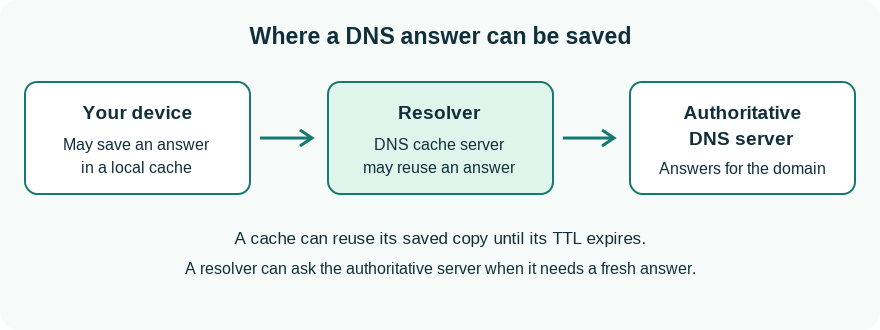
Your device can ask a resolver, a DNS cache server, for an answer. If it has no usable copy, it can look up the answer from an authoritative DNS server: the server responsible for the records. A cache can reuse a saved answer until its TTL expires. People call this period DNS propagation, but it is not a push of the change to every cache.
The clock
How long it takes: the TTL decides.
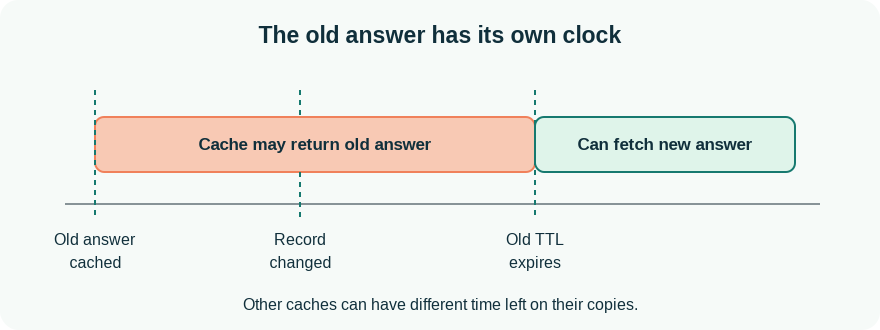
TTL means time to live. It tells a cache how long it may keep a DNS record. Imagine a cache saved your old address just before you changed it. It may keep returning that address until the TTL it received with that old answer runs out. Another cache may have less time left on its copy.
Lowering the TTL before a planned change can help, once copies with the earlier TTL have expired. Lowering it after the change cannot shorten the lifetime already given to copies of the old answer. The new TTL applies when a cache receives the new record. Local caching can add complications, so use the TTL as a guide, not a promise.
Providers set their own options. Cloudflare says its Auto TTL is 300 seconds, or five minutes, and its DNS-only range for non-Enterprise plans is 60 seconds to one day. Google says Google Public DNS generally limits TTLs to six hours even when the actual TTL is longer. These are provider-specific examples, not a universal deadline.
For the order of a planned move, see when to lower the TTL before moving a website.
A different change
Checking a nameserver change.
A nameserver answers DNS questions for a domain. NS records identify the nameservers responsible for it; this handoff is called delegation. Your registrar is the company where you register your domain. When you change nameservers, you update them at the registrar, and cached delegation can also affect what a resolver sees.
In its setup instructions, Cloudflare says to wait up to 24 hours while the registrar updates the nameservers. That is its instruction for the registrar step, not a timer for every DNS change. Cloudflare also says to disable DNSSEC before changing nameservers: leaving it enabled can make the domain unreachable. DNSSEC is a way to check that DNS answers are authentic. Follow your providers’ instructions for the switch.
Google says its Public DNS flush also clears related cached NS delegation information. The distinction between the domain, its registrar and hosting is explained in domain vs hosting.
Two visitors
Why you see the old site but a friend sees the new one.
You and your friend may use different resolvers. One can still have the old address saved while another has fetched the new one. Your own device can have a local DNS cache too. Cloudflare notes that local caching may cause a change to take longer than the configured TTL suggests.
That difference is a clue, not proof that the new record is right. Compare the actual answers with the value you intended to set.
Look at the answer
Check what DNS really says.
For a nameserver change, ask two public resolvers which NS records they return. Replace <domain> with your domain, such as example.com. Cloudflare gives these commands:
dig ns <domain> @1.1.1.1dig ns <domain> @8.8.8.8nslookup -type=ns <domain> 1.1.1.1
Run one in a terminal where the tool is available. The first two ask different resolvers; the third asks 1.1.1.1 using nslookup. Compare the names returned with the exact names your DNS provider gave you. An NS answer checks nameservers, not the website address itself.
An A record holds an IPv4 address. As a variant of the same dig pattern, dig <domain> @8.8.8.8 asks for the A record by default. Compare the returned address with the one you set. Online checking tools can also show saved results: Cloudflare notes that they use cached information, so do not treat one result as a live view of every cache.
Take action
Things you can do instead of waiting.
- Clear your Windows computer’s cache. Run
ipconfig /flushdnsin a command prompt. Microsoft says this clears the local DNS resolver cache. It does not clear a friend’s device or a public resolver. - Flush Google Public DNS. Use its cache flush tool for the name and record type you need. After changing registrar or DNS hosting, Google says to flush the main domain first. Google also says each name and record type may need its own flush; otherwise let the cached TTL expire.
- Purge 1.1.1.1. Its purge tool accepts a domain and record type. This targets the 1.1.1.1 cache, not every resolver.
Afterward, repeat the relevant lookup and compare the answer. A flush cannot correct a record that was entered incorrectly.
A missing name
A new subdomain that “does not exist” yet.
Suppose someone asks DNS for a new subdomain before you create its record. A resolver can save the answer that the name does not exist. Creating the record afterward does not erase that saved negative answer immediately.
RFC 2308 sets the negative cache lifetime using the lower of two values in the SOA record: its minimum field and its own TTL. SOA means Start of Authority; this record contains settings for a DNS zone, the group of records managed together. Create the record before testing the new name when you can, and allow a saved negative answer to expire if it was requested too early.
Check the setup
When it is not propagation.
If the old TTL has passed and the answer is still wrong, check the settings instead of repeatedly waiting:
- Compare the record value and nameserver names with the values you were given. Cloudflare says to copy nameservers exactly.
- Check where you made the change. The record needs to be at the DNS provider whose nameservers answer for your domain. If you switched nameservers, check the records at the new provider.
- For a nameserver switch, check DNSSEC with your registrar and DNS provider. Cloudflare warns that leaving it enabled during the switch can make the domain unreachable.
Sources and limits
Check the sources.
- Google Public DNS: flush cache
- Cloudflare: time to live
- RFC 1035: DNS implementation and specification
- RFC 2308: negative caching of DNS queries
- 1.1.1.1: purge cache
- Microsoft: ipconfig
- RFC 1034: DNS concepts and facilities
- Google Public DNS: FAQ
- Cloudflare: change your nameservers
- Microsoft: nslookup
Sources checked November 18, 2026. Values and settings differ by DNS provider and resolver. We have not made our own measurements.
Straight answers
Questions about DNS propagation.
How long does DNS propagation take?
For a changed record, look at the TTL that caches received before the change. A cache may use its old answer until that time runs out. A nameserver change also depends on the registrar update and cached delegation information.
Can I speed up DNS propagation?
Lower the TTL before a planned change and allow existing copies to expire first. After a change, you can clear your own Windows DNS cache or use the flush tools for Google Public DNS and 1.1.1.1. Those actions do not clear every cache.
Why is my DNS not updating?
An old answer may still be cached. Check the record and the nameservers for typing errors, and make sure you changed the record at the DNS provider your domain uses. DNSSEC settings can also affect a nameserver switch.
What TTL should I use?
There is no single value for every site. A longer TTL lets caches reuse an answer longer, while a shorter TTL lets changes take effect sooner in caches that receive it. Check the choices your DNS provider offers.
Does flushing my computer’s DNS cache fix it for everyone?
No. The Windows flush command clears the local resolver cache on that computer. Other devices and DNS cache servers can still have their own saved answers.